Cursor Slack Integration: Setup, Commands and Routing
Mention @cursor in a Slack thread and a Cursor Cloud Agent picks up the task in its own VM, reads the thread, and hands back a pull request. Here is how to install it, what the commands do, how it decides which repository to work in, and what to settle before a whole team starts using it.
Delegation Dispatch Editors · Last checked against the sources below on
What the integration does
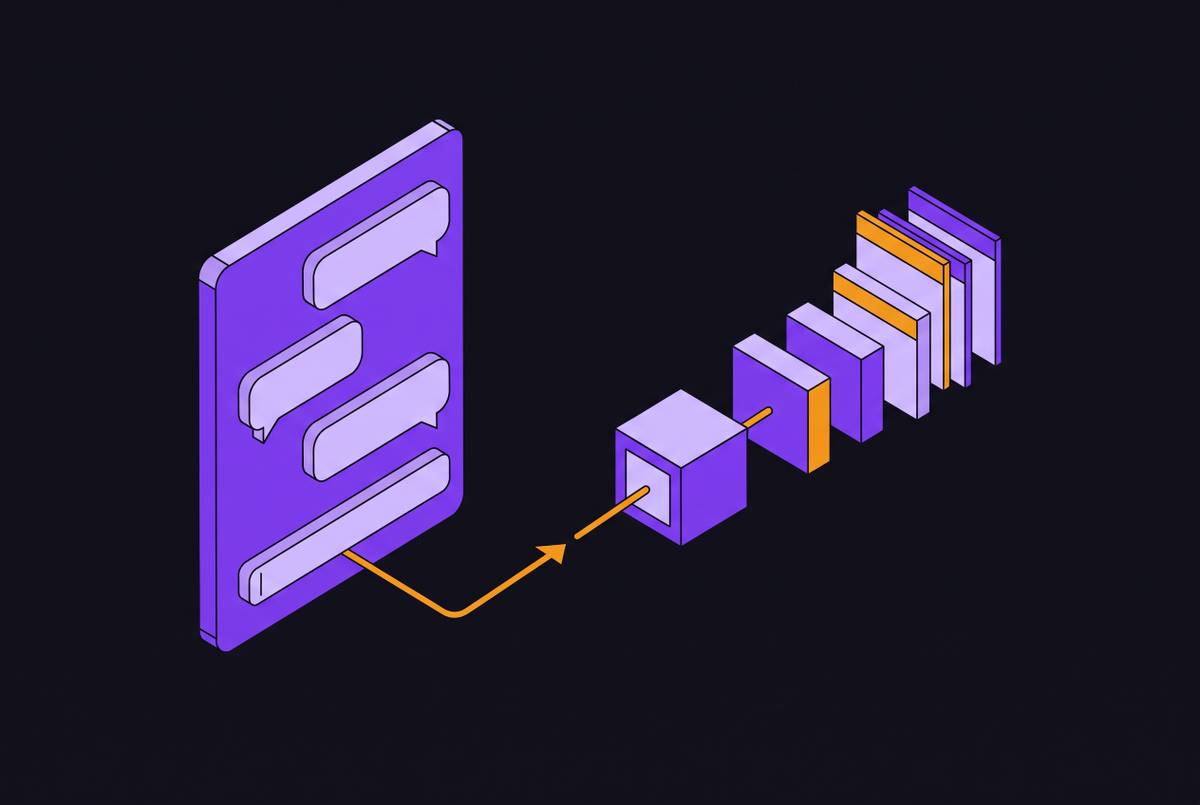
Cursor's Slack app is a front door to Cloud Agents (Cursor's name for what it used to call Background Agents). When someone mentions @cursor with a prompt, Cursor starts an agent in an isolated cloud VM with the repository cloned, works on a separate branch, and pushes its changes back for review. Nothing runs on the requester's laptop, and several agents can run at once.
The agent reads the whole thread it was mentioned in, so a bug report, a pasted log and the decision the team argued out three replies down all become part of the brief. While it works it posts a short status under the thread; for a bug fix it first posts a short plan. When it finishes, Slack shows a notification with a link to the pull request on GitHub, and an Open in Cursor button lets anyone pick the work up in the editor.
Before you install
Check three things first, because each one is a common reason the first mention does nothing:
- A plan that includes Cloud Agents. Not every Cursor plan does. Cursor's troubleshooting docs list which ones do; confirm against cursor.com/pricing before you roll it out, because plans change.
- Source control connected by a Cursor admin. Cloud Agents clone from GitHub, GitLab, Bitbucket Cloud or Azure DevOps, and the person starting an agent needs read-write access to the repository and any repos or submodules it depends on.
- Usage-based pricing and a spend limit. Setup asks you to enable usage-based pricing, and Cloud Agents bill at the selected model's rate against your plan's usage. Decide who owns that limit before the whole channel can spend it.
Installing it
- Open Cursor's integrations dashboard and click Connect next to Slack.
- Approve the Cursor app for your Slack workspace.
- Back in Cursor, connect a repository provider if you haven't, and pick a default repository.
- Enable usage-based pricing and confirm the privacy settings.
- Mention
@cursorwith a task in any channel the app is in.
If you belong to more than one paid Cursor team, choose which one Slack agents run and bill under (Team for Slack Agents in the Cloud Agents dashboard). To disconnect, use Unlink Slack in the same dashboard.
The commands
Run @cursor help in Slack for the current list. The ones you will use most:
| Command | What it does |
|---|---|
@cursor [prompt] |
Starts a Cloud Agent. In a thread that already has one, it adds a follow-up instead. |
@cursor agent [prompt] |
Forces a new, separate agent in a thread that already has one. |
@cursor settings |
Sets your defaults and the channel's default repository. |
@cursor list my agents |
Shows your running agents. |
@cursor pool |
Shows the team and channel default pools (self-hosted runs, Enterprise only). |
You can also DM the Cursor app: each new top-level message starts its own agent, and replies in that thread are follow-ups without needing the mention.
Options in the message
Cursor reads options from anywhere in the message, written either way:
- Natural:
@cursor with opus, fix the login bug in backend-api - Inline:
@cursor branch=dev model=opus autopr=false fix the login bug
The options are repo, env (a named cloud agent environment), branch (the base branch), model, autopr (open a pull request automatically or not), worker/machine and pool (run on your own hardware), and channel (post updates somewhere else, such as channel=#eng-bots). Options in the message beat your defaults, later values beat earlier ones, and env wins over repo when both are given. Anything inside a triple-backtick code block is left alone, so pasted code won't be mistaken for an option.
How it picks the repository
For a team, this is the part to get right. Cursor resolves the target in this order:
- Repository names or keywords in the message
- Repositories you have used recently
- Routing rules: keyword-to-repository (or environment) mappings set in the Cloud Agents dashboard, such as
mobile→acme/mobile-app - The channel default, set with
@cursor settings(public channels only) - Your default repository
Step 2 is the one that surprises people: an engineer who spent the morning in the backend repo can mention @cursor about a frontend bug and land in the wrong place. Naming the repo in the message, or giving each team channel its own default, removes the guesswork. For work that spans several repositories, point a routing keyword at a multi-repo environment instead of a single repo.
If an agent starts in the wrong place, the Switch repository option in the message's ⋯ menu starts a new agent on the right target. The first agent's branch and pull request are left as they are, so close them yourself.
Settings to decide as a team
- Follow-ups. Whether teammates can steer an agent someone else started is a team admin setting, Team follow-ups; with it disabled, only the person who started the agent can. Decide which you want before a thread fills up with people redirecting the same agent.
- Reply mode. Follow threads (the default) lets plain replies reach the agent; Mentions only means only
@cursormentions, DMs and answers to the agent's own questions do. - Summaries in shared channels. Agent summaries and diff images can contain file paths and code. There is a separate switch for showing them in Slack Connect channels or channels with guests.
- Privacy Mode. Cloud Agents support Privacy Mode, but not the legacy version, because they store code temporarily while they run. Read Cursor's privacy overview before you connect a repository with sensitive code.
- Slack permissions. The app asks to read channel, private channel and DM history and files so it can gather context. Cursor's Slack docs list every scope it requests; send that list to whoever approves Slack apps.
Writing a mention that gets a usable pull request
The thread is the brief, so the mention only needs what the thread doesn't say: the repository if it's ambiguous, the outcome you want, and how to check it ("add a failing test first", "don't touch the public API"). If the agent should report findings rather than open a pull request, say so, or add autopr=false. Our guide to writing Slack commands that produce useful agent output goes further.
When you need more than one agent
The Slack integration runs Cursor's agent. If your team also wants Claude Code, Codex or OpenCode on some tasks, each has its own way in: Claude Code has its own Slack app (see Triggering Claude Code from a Slack thread), and platforms such as Replicas start any of these agents from Slack, Linear or GitHub, each task in its own VM, and return a pull request. Which one fits depends on whether your team standardises on one agent or picks per task; why task diversity is the argument for a multi-harness platform makes the case for the second.